Stream data from Apache Kafka® to ClickHouse® for real-time analytics
Learn how to create a ClickHouse sink connector for Apache Kafka® with Aiven platform
Learn how to create a ClickHouse sink connector for Apache Kafka® with Aiven platform
Apache Kafka and ClickHouse are commonly used together for real-time data analytics and event-driven systems. Both tools are built for speed and scale. While Apache Kafka efficiently handles streaming data ClickHouse excels at Online Analytical Processing (OLAP) and is designed for fast queries on large datasets. By combining Apache Kafka and ClickHouse we can support a variety of different usecases, such as accurate real-time analytics, fraud detection systems, financial records pipelines.
For these scenarios, precision is key - you want to make sure every record is ingested exactly once. That’s where the Aiven platform comes in. With support for the ClickHouse Kafka Connect Sink and built-in exactly-once semantics, Aiven makes it easy to reliably move data from Kafka to ClickHouse without duplicates or data loss. With this you can use real-time data without any other post-processing work and deduplication, allowing quicker intelligent analysis, fewer errors, and fewer data munging by expensive data engineers, overall maximising your total cost of ownership and reducing ops expenditure.
In this article, we’ll show you how to stream data from Apache Kafka to ClickHouse using Aiven platform. As an example, we’ll walk through setting up a pipeline to stream sensor data into a Kafka topic and then sink that data into a ClickHouse table.
For this tutorial, we’ll be using Aiven for Apache Kafka, which is quick and easy to set up. If you’re new to Aiven, you can create an account — you'll also get free credits to start your trial.
Once you're signed in, create two new services Aiven for Apache Kafka and Aiven for ClickHouse.
Add a new topic "sensor_readings" to Apache Kafka.
There are several ways to add test data to Apache Kafka. For this tutorial, we’ll use the kcat tool along with a simple bash script. To get started, you’ll need to install kcat and create a kcat.config file. This file should include the URI to your Kafka cluster and the necessary certificates:
Loading code...
You can learn more about getting started with kcat and Aiven here.
Once you’ve set up the kcat.config, next to it create a new file called stream_sensor_data.sh. This script will generate test data and send it to a Kafka topic:
Loading code...
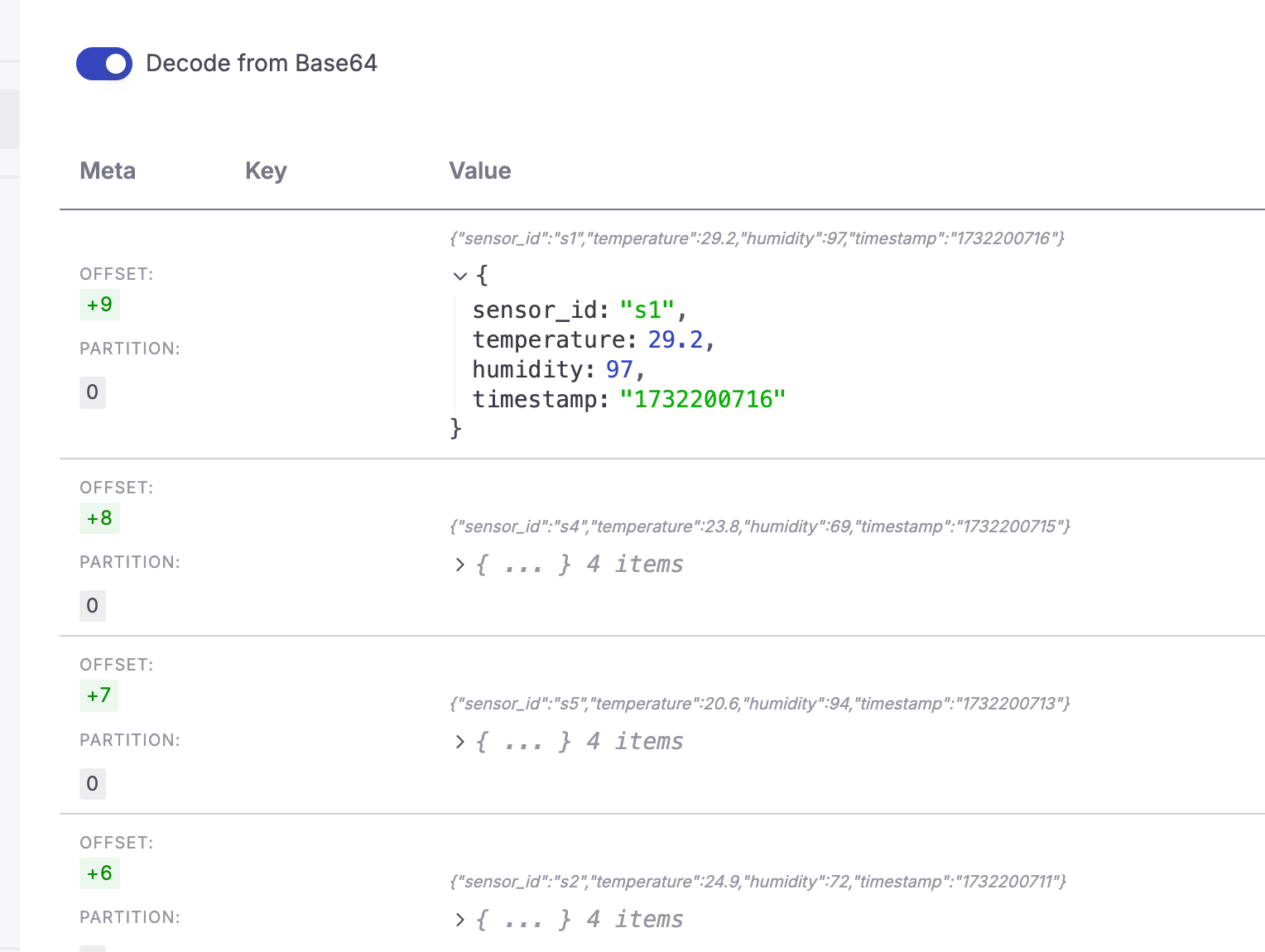
If you enable Apache Kafka REST API you can fetch messages as they arrive in the topic:
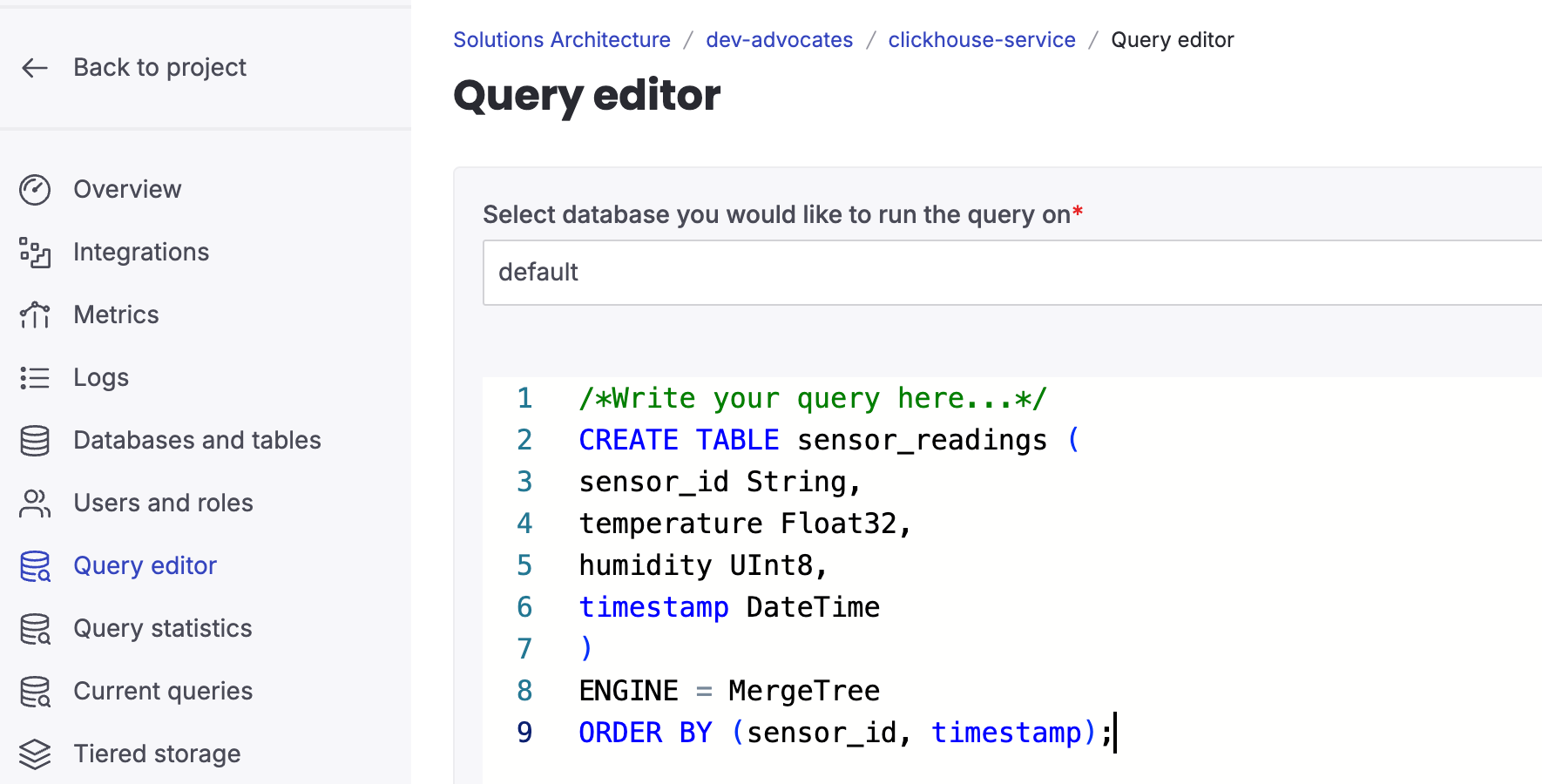
To add a new table in ClickHouse, simply run an SQL query in the Query Editor found on the service page of your Aiven for ClickHouse.
Loading code...
Now it’s time to set up a connector to sink data from your Apache Kafka topic into the ClickHouse table. You can do this using either the Aiven CLI or the Aiven Console. In this article, we’ll use the Aiven Console, but you can find detailed instructions for the CLI in our documentation.
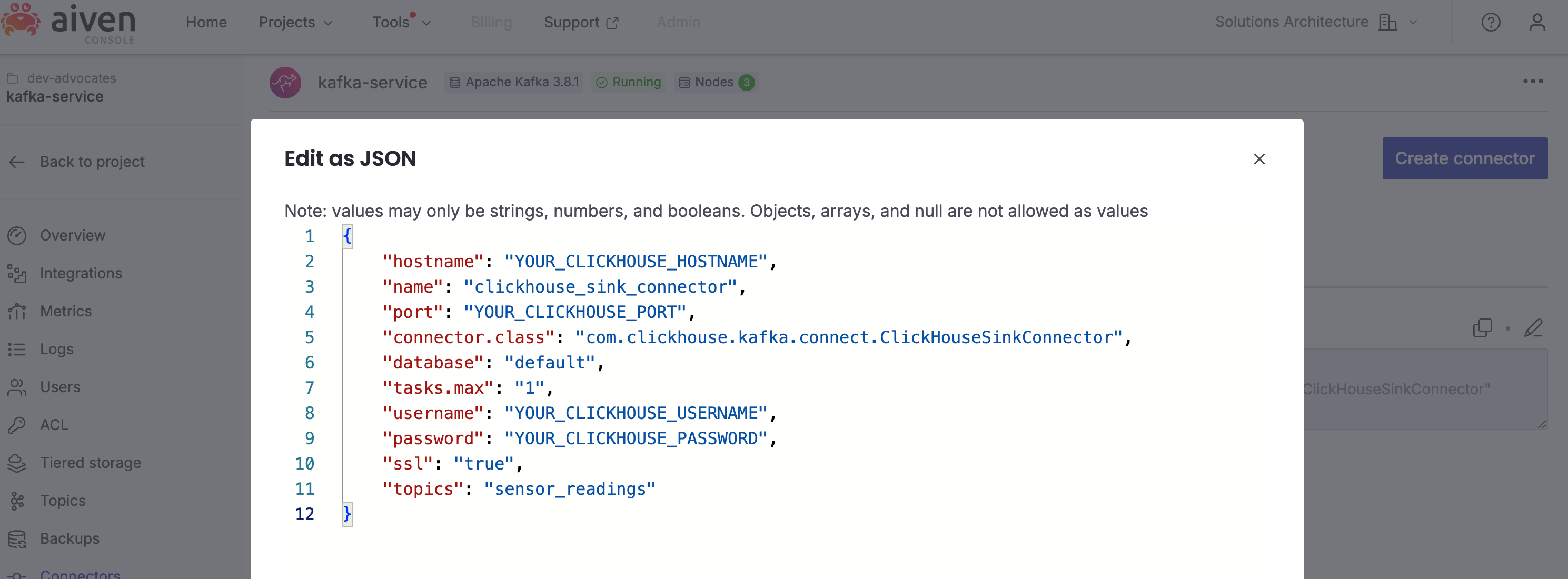
To get started, go to the Connectors page in your Aiven for Apache Kafka service and click to create a new connector. From the list, select the ClickHouse Connector. Then, edit the connector configuration in JSON format and add the following information::
Loading code...
Be sure to update the configuration with your ClickHouse connection details. You can find these values under the ClickHouse HTTPS & JDBC tab.
When you’re ready, click Apply and wait for the connector to start. If you encounter any issues, a stack trace will be available to help you troubleshoot.
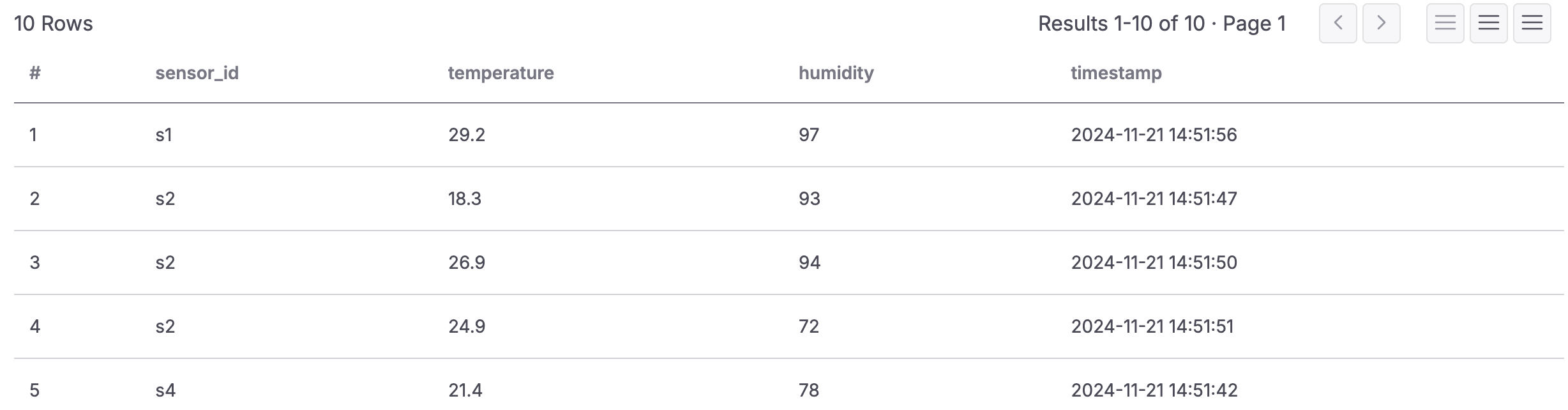
Once the connector is up and running, you can verify the data in your ClickHouse table:
Loading code...
When using the ClickHouse Kafka sink connector, there are a few important points to keep in mind for optimal performance.
While you can run Apache Kafka Connect as part of your existing Aiven for Apache Kafka service for simplicity, this approach comes with certain performance trade-offs. For production workloads, it’s recommended to use a standalone Apache Kafka Connect service.
The Aiven platform allows you to enable a standalone Apache Kafka Connect service, providing the following advantages:
This setup will give you better performance and flexibility, particularly for demanding production environments.
ClickHouse's MergeTree engine is designed to perform best when data is ingested in larger batches. Ingesting individual records can slow down the merging process and create potential bottlenecks.
To optimize batch sizes and improve throughput, consider fine-tuning the following Kafka connector settings:
These settings help ensure efficient data ingestion and smoother operation of the MergeTree engine.
Table of contents
bootstrap.servers=demo-kafka.my-demo-project.aivencloud.com:17072
security.protocol=ssl
ssl.key.location=service.key
ssl.certificate.location=service.cert
ssl.ca.location=ca.pem
#!/bin/bash
# Kafka topic name
TOPIC="sensor_readings"
# Number of messages to send
NUM_MESSAGES=10
# Function to generate random sensor readings
generate_sensor_data() {
local SENSOR_ID="s$((RANDOM % 5 + 1))" # Generate sensor IDs like s1, s2, ..., s5
local TEMPERATURE=$(awk -v min=15 -v max=30 'BEGIN{srand(); printf "%.1f", min+rand()*(max-min)}') # Random temperature 15-30
local HUMIDITY=$((RANDOM % 41 + 60)) # Random humidity 60-100
local TIMESTAMP=$(date +%s) # Current Unix timestamp
echo "{\"sensor_id\": \"$SENSOR_ID\", \"temperature\": $TEMPERATURE, \"humidity\": $HUMIDITY, \"timestamp\": \"$TIMESTAMP\"}"
}
# Stream test data to Kafka topic
for ((i = 1; i <= NUM_MESSAGES; i++)); do
DATA=$(generate_sensor_data)
echo "Sending: $DATA"
echo "$DATA" | kcat -F kcat.config -t $TOPIC -P
sleep 1 # Optional: pause between messages
done
echo "Finished streaming $NUM_MESSAGES messages to topic '$TOPIC'."CREATE TABLE sensor_readings (
sensor_id String,
temperature Float32,
humidity UInt8,
timestamp DateTime
)
ENGINE = MergeTree
ORDER BY (sensor_id, timestamp);{
"hostname": "YOUR_CLICKHOUSE_HOSTNAME",
"name": "clickhouse_sink_connector",
"port": "YOUR_CLICKHOUSE_PORT",
"connector.class": "com.clickhouse.kafka.connect.ClickHouseSinkConnector",
"database": "default",
"tasks.max": "1",
"username": "YOUR_CLICKHOUSE_USERNAME",
"password": "YOUR_CLICKHOUSE_PASSWORD",
"ssl": "true",
"topics": "sensor_readings"
}SELECT * FROM sensor_readings LIMIT 10'%3e%3cpath%20d='M4.02991%2017.5H0.297321V5.81641H4.02991V17.5ZM2.16161%204.22266C0.968304%204.22266%200%203.26172%200%202.10156C0%201.54297%200.229018%201.01172%200.634821%200.617188C1.04062%200.222656%201.59107%200%202.16161%200C2.73214%200%203.28259%200.222656%203.68839%200.617188C4.0942%201.01172%204.32321%201.54688%204.32321%202.10156C4.32321%203.26172%203.35491%204.22266%202.16161%204.22266ZM17.996%2017.5H14.2714V11.8125C14.2714%2010.457%2014.2433%208.71875%2012.3308%208.71875C10.3902%208.71875%2010.0929%2010.1914%2010.0929%2011.7148V17.5H6.36429V5.81641H9.9442V7.41016H9.99643C10.4946%206.49219%2011.7121%205.52344%2013.5281%205.52344C17.3049%205.52344%2018%207.94141%2018%2011.082V17.5H17.996Z'%20fill='white'%20/%3e%3c/g%3e%3cdefs%3e%3cclipPath%20id='clip0_1338_1747'%3e%3crect%20width='18'%20height='20'%20fill='white'%20/%3e%3c/clipPath%3e%3c/defs%3e%3c/svg%3e)

'%3e%3cpath%20d='M14.3517%201.875H17.1883L10.9928%208.75781L18.2812%2018.125H12.5758L8.10396%2012.4453L2.99325%2018.125H0.152623L6.77807%2010.7617L-0.208984%201.875H5.64102L9.67896%207.06641L14.3517%201.875ZM13.3553%2016.4766H14.9263L4.78521%203.4375H3.09771L13.3553%2016.4766Z'%20fill='white'%20/%3e%3c/g%3e%3cdefs%3e%3cclipPath%20id='clip0_1338_1751'%3e%3crect%20width='18'%20height='20'%20fill='white'%20/%3e%3c/clipPath%3e%3c/defs%3e%3c/svg%3e)