Remove naughty words from your data using DataCater
We all know we shouldn't use naughty words. Learn how to remove them from your streaming data using DataCater.
We all know we shouldn't use naughty words. Learn how to remove them from your streaming data using DataCater.
Oh ****, everyone knows that bad words shouldn't be used!
Even though you might not expect it, profanity exists everywhere, whether it's a single person talking, a social media comment, or a live show. Giving visibility to such bad words can have disastrous effects, and, in the word of real-time streaming, we can't rely on a human check. Therefore we need to build streaming systems that automatically prevent bad words from being displayed. If you're interested in this, today's your lucky day, because we're going to create one with a couple of technologies and integrations!
In this blog post, we'll use the great Simpsons dataset, perfect for our scenario since it contains phrases with several bad words, like a live presenter cursing periodically. We'll demonstrate how we can clean up sentences in streaming mode using:
We need a PostgreSQL database that will act as storage for the sentences. For convenience, we are using Aiven for PostgreSQL; we can create it with the Aiven CLI and the following command:
Loading code...
The minimal hobbyist plan is all we need for the Simpsons dataset. We also chose the google-europe-west8 zone, one of the newest zones covered by Aiven, conveniently located in Milan. You can review the list of clouds available in the dedicated document.
We also need to create an Aiven for OpenSearch service which will contain the polished results:
Loading code...
As before, we're using the hobbyist plan and the same region. Let's wait for both services to be up with:
Loading code...
The Simpsons dialogue dataset is available in Kaggle. After creating a Kaggle account, we can download it as archive.zip, and then decompress that to produce the data in CSV format in a file named simpsons_dataset.csv. The file contains all the dialogues together with the character speaking each sentence.
To load it into the PostgreSQL database, we first need connect to the PostgreSQL command prompt with:
Loading code...
Then we need to create a table called simpsons_dialogues to host our dataset:
Loading code...
Copying the dataset over to PostgreSQL can be done using the PostgreSQL \copy command:
Loading code...
The data should be ingested in a matter of seconds... Once the upload is finished, you can check there's some data in the table with the following query:
Loading code...
Now it's time to play.
After importing the data, we need to define how we'll transform the data. We can head to DataCater and sign up for a free trial, entitling us to define up to two pipelines. Once our account is confirmed, we will land in the main dashboard where we can create the data endpoints of our pipeline.
We need to tell DataCater where to source the data and where to sink it. Let's start by mapping the source of data, by clicking on the Data Sources link at the top, and selecting Create a data source. The list of options available is quite wide, and includes PostgreSQL which we need to load the Simpsons dataset.
To define a datasource on top of Aiven for PostgreSQL we need to specify:
Name: the logical name of the datasource, we can use simpsons_source_data
Hostname or IP, Port, Username and Password: the connection details to use to reach Aiven for PostgreSQL. We can find all the details with the following Aiven CLI command:
Loading code...
SSL: Aiven for PostgreSQL requires SSL, therefore we need to specify Use SSL
Database and Schema: the database and schema where the data is residing. We used the defaults, therefore the database is defaultdb and the schema is public
Table name: the table with the data, in our case it is simpsons_dialogues. We can either allow DataCater to fetch the list of tables and select from the dropdown, or fill it in explicitly.
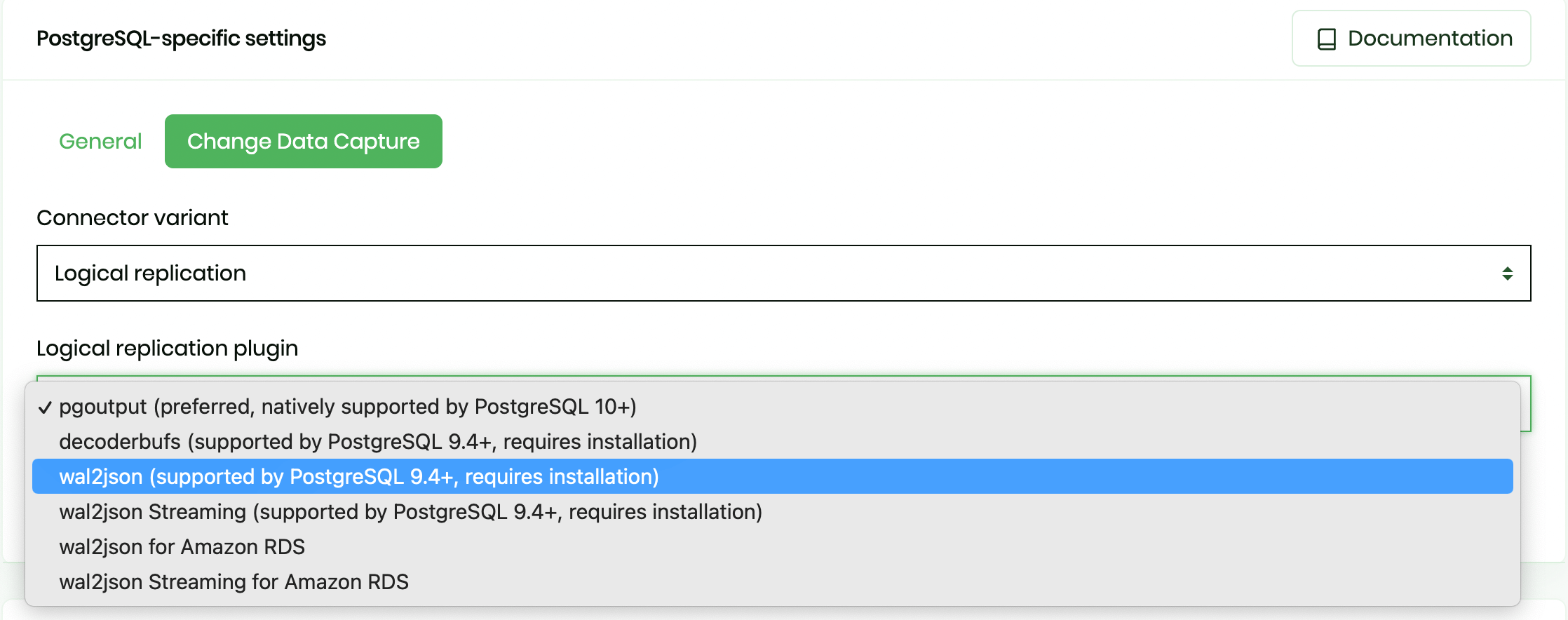
We also need to change the Change Data Capture method, and select Logical replication with wal2json.
With all the fields filled, we can check the connection and, if successful, click on Create datasource.
A similar exercise can be done with the OpenSearch index, that we'll use as a data pipeline target. We need to head to Data sinks and click on Create data sink, select Elasticsearch, and provide the following details:
Name: the logical name of the data sink, we can use simpsons_sink_data
Hostname or IP, Port, Username and Password: the connection details to use to reach Aiven for PostgreSQL. We can find all the details with the following Aiven CLI command:
Loading code...
HTTP Scheme: we can use the HTTPS protocol, available by default in Aiven for openSearch
Index name: we can either leave this blank (an index named datacater_pipeline_[pipeline_id] will be used), or fill it in. In our case we'll fill it in with simpsons_cleaned_dialogues
Once we've checked that the connection is valid, we click on Create data sink to finalise the process.
As anticipated, we're going to use the ApiLayer Bad words API to clean-up the sentences, which means we need to setup an account. Once that's created and verified, we can subscribe to the ApiLayer Bad words API free plan (enough for our little test).
Remember to make a note of the API Key from your account details on the ApiLayer website. You'll need it down the road.
Time to create our data pipeline.
Let's head back to DataCater and select the Pipelines tab at the top of the window and click on Create pipeline. We can now:
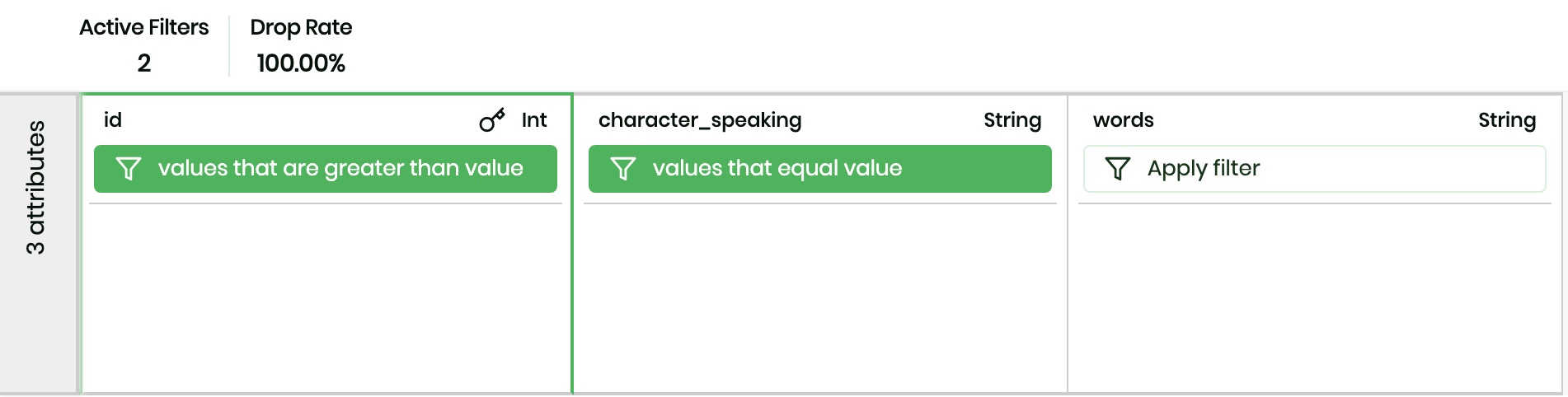
simpsons_source_data pointing to our PostgreSQL table.simpsons_cleaned_dialogues pointing to our OpenSearch index.Since ApiLayer Bad words API Free Plan only allows us to clean up to 100 sentences a day, we'll focus on the most recent sentences of the iconic character Bart Simpson. To do this, let's navigate to the Filters tab and add the following filters:
character_speaking column, add a filter of type Require values that equal value with the value Bart Simpsonid column, add a filter of type Require values that are greater than value with the value 157500. The 157500 value has been hand crafted accurately to have enough examples to play with, but not too much to exceed the API's free tier daily quota.The Filters tab should look like the following image. Don't worry about the 100% drop rate, it's based on sample data, and we still have 54 rows to parse. You can check it with the following query in the PostgreSQL database
Loading code...
Now we need to define the cleaning pipeline by navigating to the Transform tab, where the magic 🪄 happens.
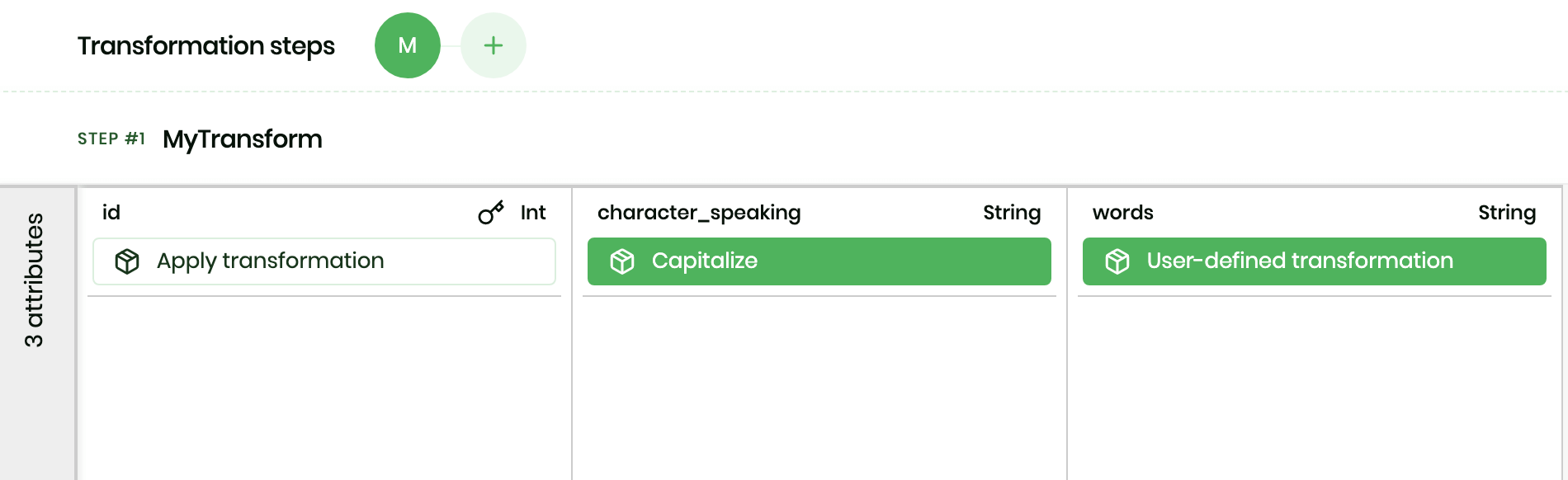
If we click on the Apply transformation button below the character_speaking column, we can check the long list of options available for transformations and select Capitalize to normalise all characters capitalization.
Then we can move to the words column and, apply the User defined transformation which allows us to write Python, amazing! The DataCater Code Transformations documentation says that we can use the requests module to perform API calls to ApiLayer.
With Python we can call the ApiLayer Bad Words API, pass the phrase and store the cleanup response. Pasting the following code (taken from the ApiLayer documentation) and replacing the APILAYER_KEY placeholder with the value we saved earlier from the ApiLayer website will do the trick:
Loading code...
In the above code, we're setting the headers and the URL, and then retrieving the words column from the current row (row['words]), encoding it and passing it to the ApiLayer API, and then finally parsing the result.
Once we've finished our transformation definition, the tab should be similar to the following image.
It's finally time to deploy the pipeline. We can head to the Deploy tab and click on Create deployment. We just need to wait a couple of seconds for the deployment to be created and then we can hit the Start button. The DataCater UI allows us also to browse the deployment logs, which is quite handy to spot if something goes wrong.
Where's our data gone? We can check it in OpenSearch Dashboards, available alongside our Aiven for OpenSearch. We can find the URL and login credentials with:
Loading code...
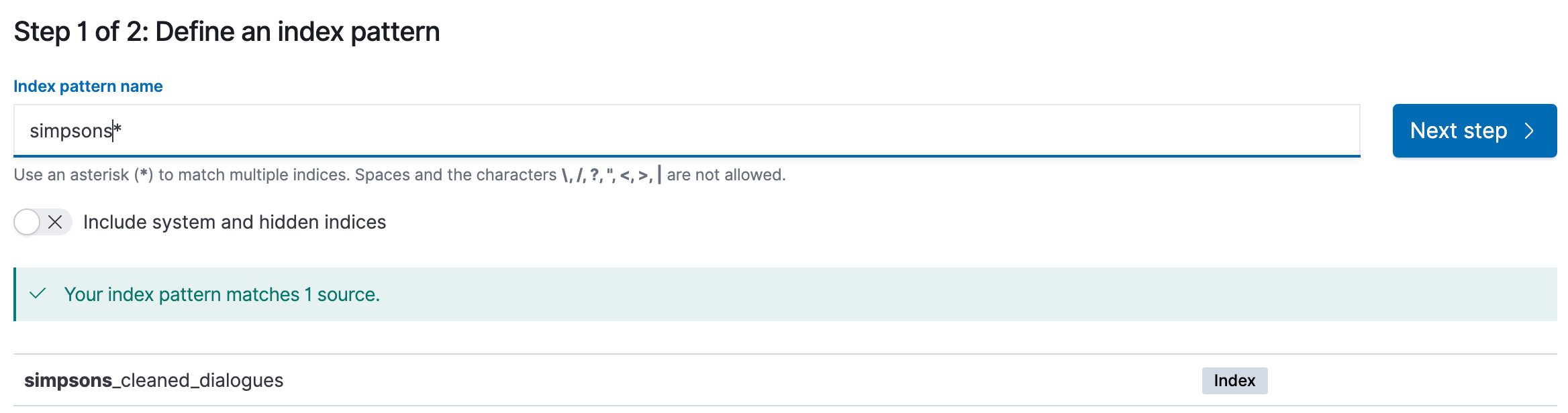
We can head to Stack Management select Index Patterns, and create an index pattern with the name simpsons*. If our data pipeline is working we should see that the simpsons_cleaned_dialogues exists.
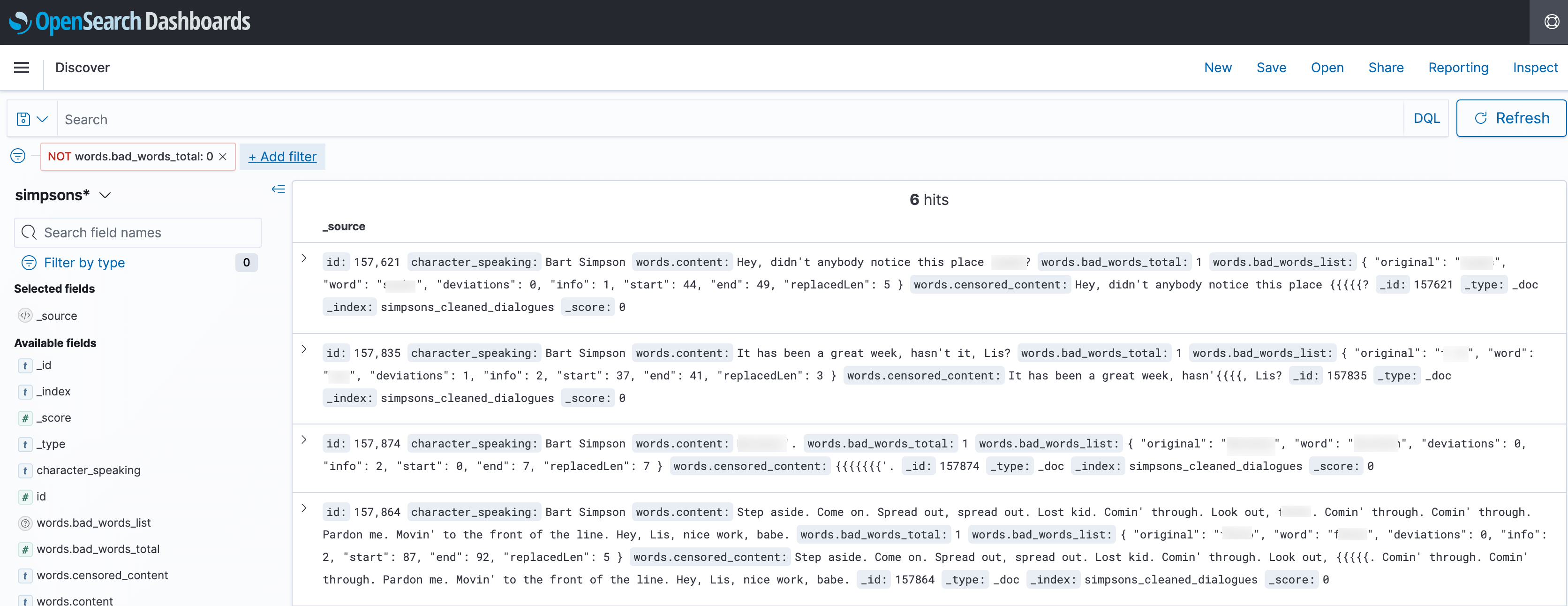
After creating the index pattern, we can head to the Discover tab, add a filter for words.bad_words_total not being equal to 0, and review the dialogues that seem to contain bad words. Some of them are false positives... but hey better safe than sorry!
As of now, we have only polished a static set of sentences. Can we demonstrate that the flow is acting in streaming mode too?
With our terminal connected to the PostgreSQL instance, we can now take a deep breath and run the following insert statement replacing the BAD_WORDS_PHRASE with something really impolite:
Loading code...
And immediately we should see a new entry in the OpenSearch index. In my case... it worked!
By refreshing the OpenSearch Dashboard, scrolling to the bottom, checking the last entry and clicking on the little arrow > next to the message, we can see the JSON output in detail, represented below with some * polishing the bad words.
Loading code...
A real-time streaming solution that polishes sentences... This is **** brilliant!
Jokes apart, this is just a simple example of what's achievable by plugging DataCater on top of Aiven services, like Aiven for PostgreSQL and Aiven for OpenSearch. The rich set of pre-cooked transformations allows you to cover a great part of the typical data manipulations needed, and, for the rest, there's always the Python extension handy.
Some more resources that you might find useful:
avn service create demo-pg  \
    --service-type pg       \
    --plan hobbyist         \
    --cloud google-europe-west8
avn service create demo-opensearch \
--service-type opensearch \
--plan hobbyist \
--cloud google-europe-west8avn service wait demo-pg
avn service wait demo-opensearchavn service cli demo-pgcreate table simpsons_dialogues(
id serial primary key,
character_speaking text,
words text);\copy simpsons_dialogues(character_speaking, words) from 'simpsons_dataset.csv' csv headerselect count(*) from simpsons_dialogues;avn service get demo-pg --format '{service_uri_params}'avn service get demo-opensearch --format '{service_uri_params}'select count(*)
from simpsons_dialogues
where character_speaking = 'Bart Simpson'
and id > 157500import requests
url = "https://api.apilayer.com/bad_words?censor_character={censor_character}"
headers= {
"apikey": "APILAYER_KEY"
}
def transform(value, row):
result = ''
if row['words'] is not None:
payload = row['words'].encode("utf-8")
response = requests.request("POST", url, headers=headers, data = payload)
status_code = response.status_code
result = response.text
if result is None:
result=''
return str(result)avn service get demo-opensearch --json \
| jq -r '.connection_info.opensearch_dashboards_uri'insert into simpsons_dialogues (character_speaking, words)
values ('Bart Simpson', 'BAD_WORDS_PHRASE');{
"_index": "thesimpsons",
"_type": "_doc",
"_id": "158315",
"_version": 0,
"_score": 0,
"_source": {
"id": 158315,
"character_speaking": "Bart Simpson",
"words": {
"content": "D*** A** S***",
"bad_words_total": 3,
"bad_words_list": [
{
"original": "D***",
"word": "d***",
"deviations": 0,
"info": 2,
"start": 0,
"end": 4,
"replacedLen": 4
},
{
"original": "A**",
"word": "a**",
"deviations": 0,
"info": 2,
"start": 5,
"end": 8,
"replacedLen": 3
},
{
"original": "S**",
"word": "s**",
"deviations": 0,
"info": 2,
"start": 9,
"end": 13,
"replacedLen": 4
}
],
"censored_content": "**** *** ****"
}
}
}'%3e%3cpath%20d='M4.02991%2017.5H0.297321V5.81641H4.02991V17.5ZM2.16161%204.22266C0.968304%204.22266%200%203.26172%200%202.10156C0%201.54297%200.229018%201.01172%200.634821%200.617188C1.04062%200.222656%201.59107%200%202.16161%200C2.73214%200%203.28259%200.222656%203.68839%200.617188C4.0942%201.01172%204.32321%201.54688%204.32321%202.10156C4.32321%203.26172%203.35491%204.22266%202.16161%204.22266ZM17.996%2017.5H14.2714V11.8125C14.2714%2010.457%2014.2433%208.71875%2012.3308%208.71875C10.3902%208.71875%2010.0929%2010.1914%2010.0929%2011.7148V17.5H6.36429V5.81641H9.9442V7.41016H9.99643C10.4946%206.49219%2011.7121%205.52344%2013.5281%205.52344C17.3049%205.52344%2018%207.94141%2018%2011.082V17.5H17.996Z'%20fill='white'%20/%3e%3c/g%3e%3cdefs%3e%3cclipPath%20id='clip0_1338_1747'%3e%3crect%20width='18'%20height='20'%20fill='white'%20/%3e%3c/clipPath%3e%3c/defs%3e%3c/svg%3e)

'%3e%3cpath%20d='M14.3517%201.875H17.1883L10.9928%208.75781L18.2812%2018.125H12.5758L8.10396%2012.4453L2.99325%2018.125H0.152623L6.77807%2010.7617L-0.208984%201.875H5.64102L9.67896%207.06641L14.3517%201.875ZM13.3553%2016.4766H14.9263L4.78521%203.4375H3.09771L13.3553%2016.4766Z'%20fill='white'%20/%3e%3c/g%3e%3cdefs%3e%3cclipPath%20id='clip0_1338_1751'%3e%3crect%20width='18'%20height='20'%20fill='white'%20/%3e%3c/clipPath%3e%3c/defs%3e%3c/svg%3e)