
'%3e%3cpath%20d='M4.02991%2017.5H0.297321V5.81641H4.02991V17.5ZM2.16161%204.22266C0.968304%204.22266%200%203.26172%200%202.10156C0%201.54297%200.229018%201.01172%200.634821%200.617188C1.04062%200.222656%201.59107%200%202.16161%200C2.73214%200%203.28259%200.222656%203.68839%200.617188C4.0942%201.01172%204.32321%201.54688%204.32321%202.10156C4.32321%203.26172%203.35491%204.22266%202.16161%204.22266ZM17.996%2017.5H14.2714V11.8125C14.2714%2010.457%2014.2433%208.71875%2012.3308%208.71875C10.3902%208.71875%2010.0929%2010.1914%2010.0929%2011.7148V17.5H6.36429V5.81641H9.9442V7.41016H9.99643C10.4946%206.49219%2011.7121%205.52344%2013.5281%205.52344C17.3049%205.52344%2018%207.94141%2018%2011.082V17.5H17.996Z'%20fill='white'%20/%3e%3c/g%3e%3cdefs%3e%3cclipPath%20id='clip0_1338_1747'%3e%3crect%20width='18'%20height='20'%20fill='white'%20/%3e%3c/clipPath%3e%3c/defs%3e%3c/svg%3e)

'%3e%3cpath%20d='M14.3517%201.875H17.1883L10.9928%208.75781L18.2812%2018.125H12.5758L8.10396%2012.4453L2.99325%2018.125H0.152623L6.77807%2010.7617L-0.208984%201.875H5.64102L9.67896%207.06641L14.3517%201.875ZM13.3553%2016.4766H14.9263L4.78521%203.4375H3.09771L13.3553%2016.4766Z'%20fill='white'%20/%3e%3c/g%3e%3cdefs%3e%3cclipPath%20id='clip0_1338_1751'%3e%3crect%20width='18'%20height='20'%20fill='white'%20/%3e%3c/clipPath%3e%3c/defs%3e%3c/svg%3e)


In this article we’ll show how we built an image search demo in Aiven Apps. The demo uses the CLIP Large Multimodal Model (LMM) to turn a user’s text prompts into a vector that can be compared with the precomputed vectors for a corpus of images, allowing the user to find images based on their text.
While in this example the LMM input (the text prompt) is coming from the user, the principle is the same as for an internally generated query.
The demo
Back in early 2024 we built a demonstration using the OpenAI CLIP model to allow comparing texts and images. This article looks at how to deploy that demo with Aiven Apps.
The demo takes a pre-prepared selection of images, uses the CLIP model from OpenAI to generate embeddings for each picture, and stores them in PostgreSQL using pgvector.
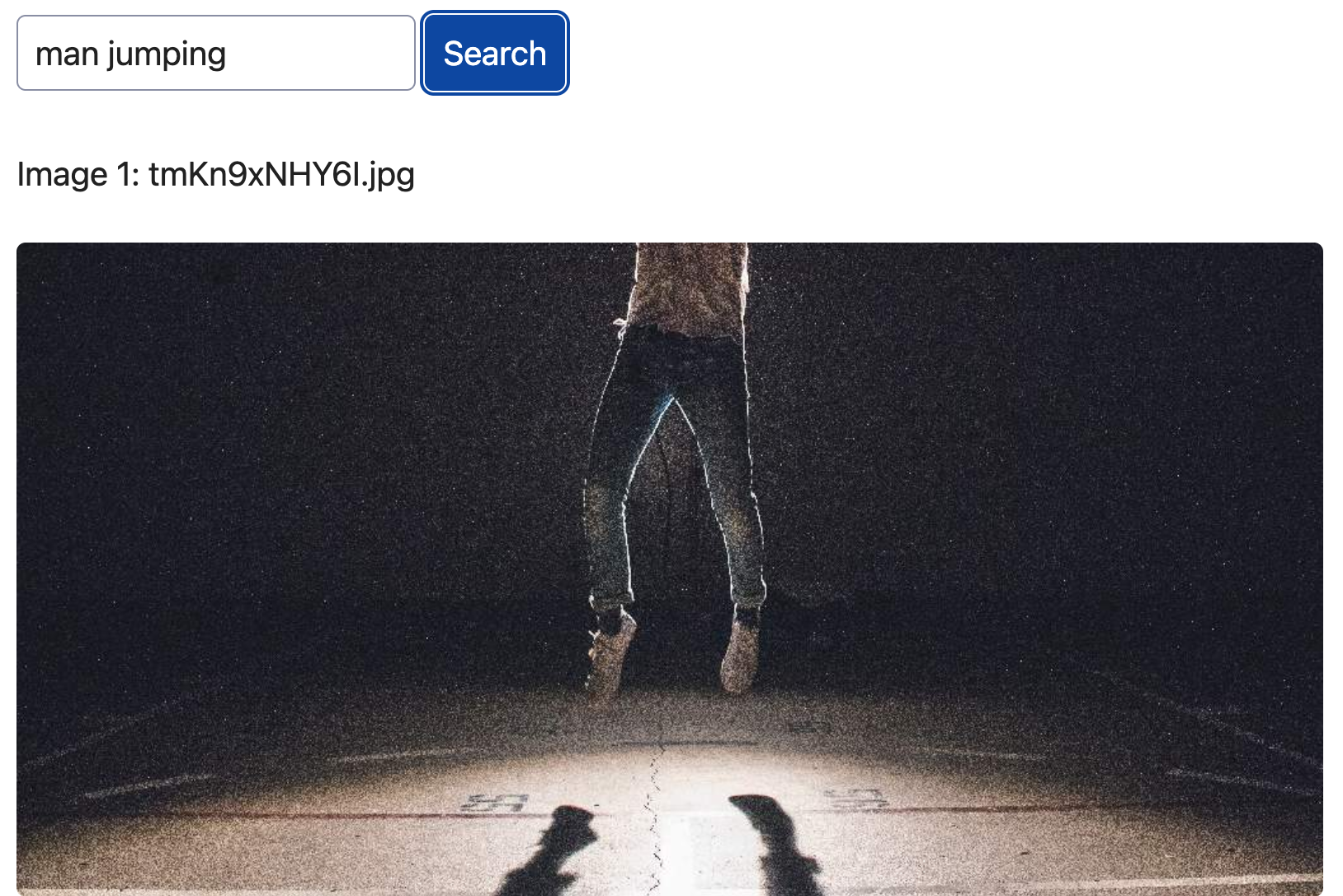
The images can then be searched on a web page with a text prompt box. The user enters a phrase, which is also passed through the CLIP model to generate its own embedding. An SQL query is then used to find the four images with the closest embedding to the text, and those four pictures are shown to the user.
Here is a picture of the web page interface. The user has entered the prompt “man jumping” and we can see the first result image.
Deploying the demo
All the files shown are taken from the demo’s GitHub repository. The README file describes how to run the demo application at the command line, using the provided Container file, and using the provided Compose files.
The Container file
Here’s the standard Container file, Dockerfile, which installs the necessary Python packages, copies over the list of image filenames and the source files, sets up directories and runs the app.
The main thing missing is that it doesn’t give any explicit guidance on how to connect to the PostgreSQL database.
Loading code...
The generic Compose file
The generic Compose file, compose.yaml, solves that problem by deploying its own Postgres service. Since we know we want the pgvector extension, we use the specialized pgvector/pgvector image which provides it:
Loading code...
This is great for local testing, but not so useful for an actual demo where you want other people to be able to interact with it, and type their own prompts.
Making it an Aiven App
For Aiven, we need to make it more obvious that we want a PostgreSQL image. There are many images out there that run a customised version of PostgreSQL, including the pgvector image which has the pgvector extension installed. There’s no practical way to make Aiven Apps aware that all of those “mean” PostgreSQL, even when the extensions are already present in Aiven for PostgreSQL. The solution is to use an alternate Aiven-specific Compose file, and just explicitly say “we want Postgres”.
While we’re doing that, we can simplify the Compose file a little bit, as Aiven handles service management, so we don’t need to specify the restart conditions or health checks.
The result is this compose.aiven.yaml
Loading code...
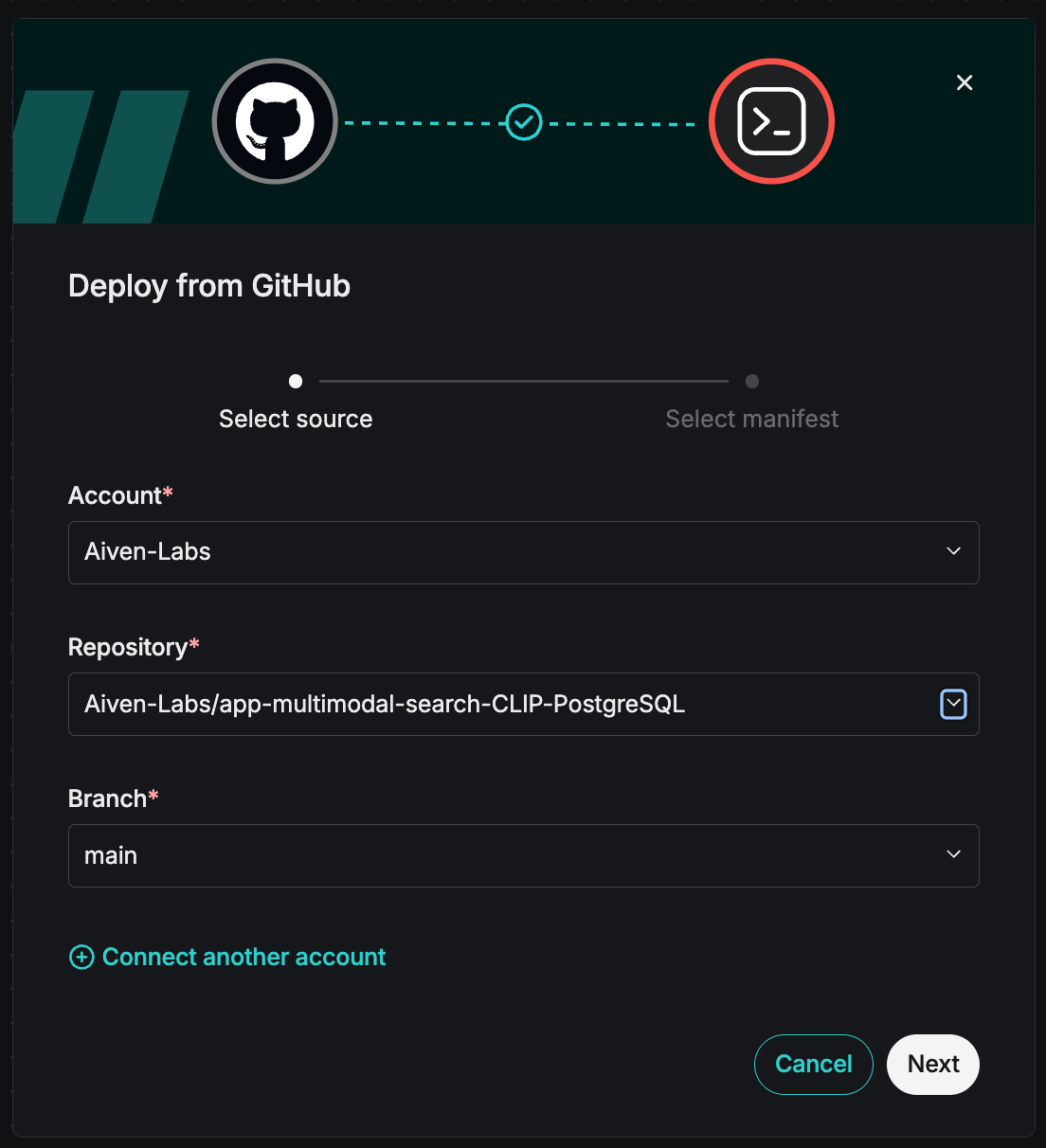
To deploy this, go to the Aiven web console. In your project, click Applications, and then click Deploy App. Select your account, the repository and the main branch and click Next.
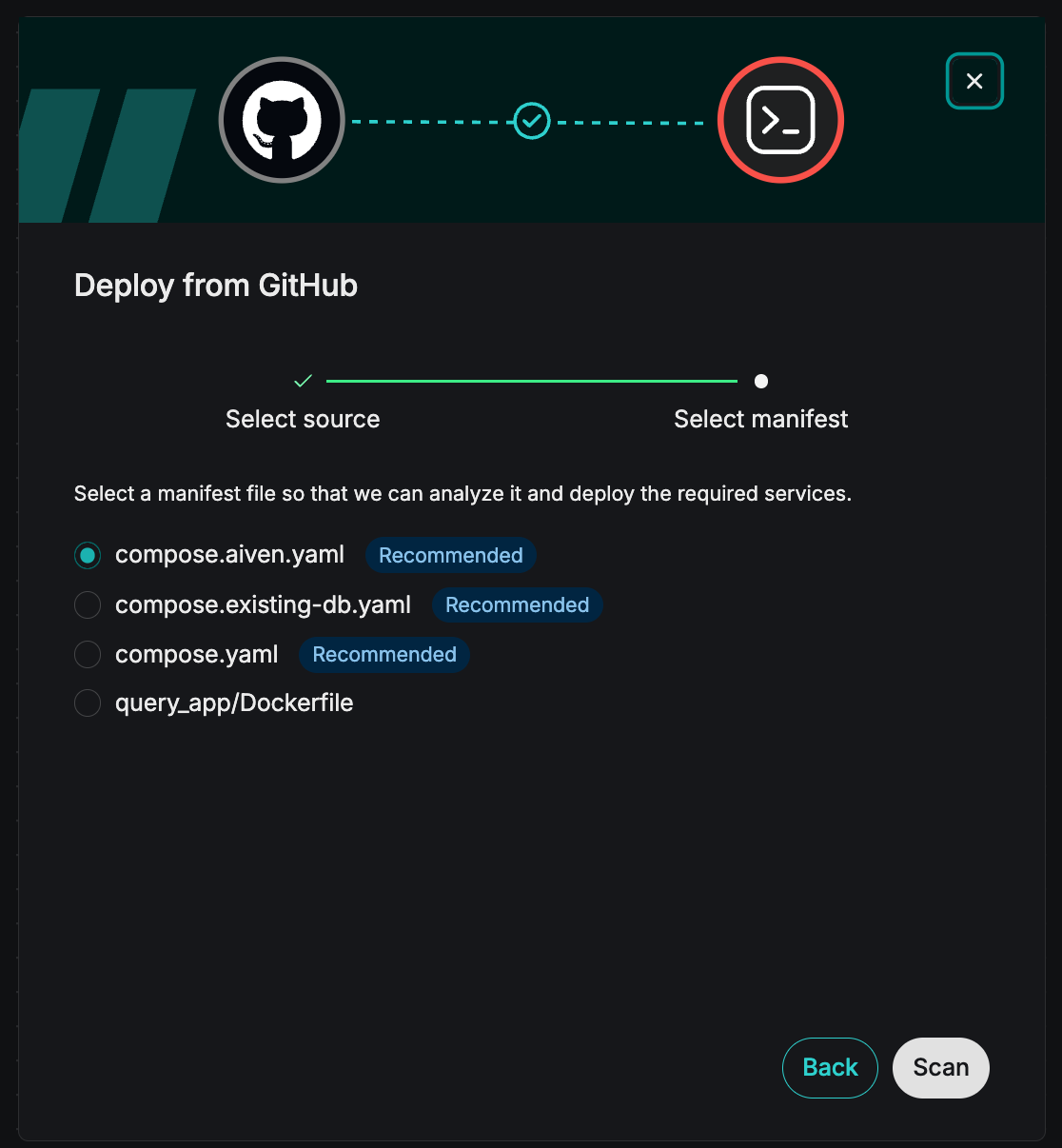
Then select the compose.aiven.yaml file and click Scan.
Aiven will scan the Compose and Container files, and provide an overview like the following diagram.
- Clicking on the pen icon on a service card allows editing its details, for instance to change the plan size or the service name.
- The default is to create a new Postgres service, but if there’s already a suitable database to be re-used, then use the paired arrows icon to change that.
 on a service card allows editing its details, for instance to change the plan size or the service name.
 to change that.
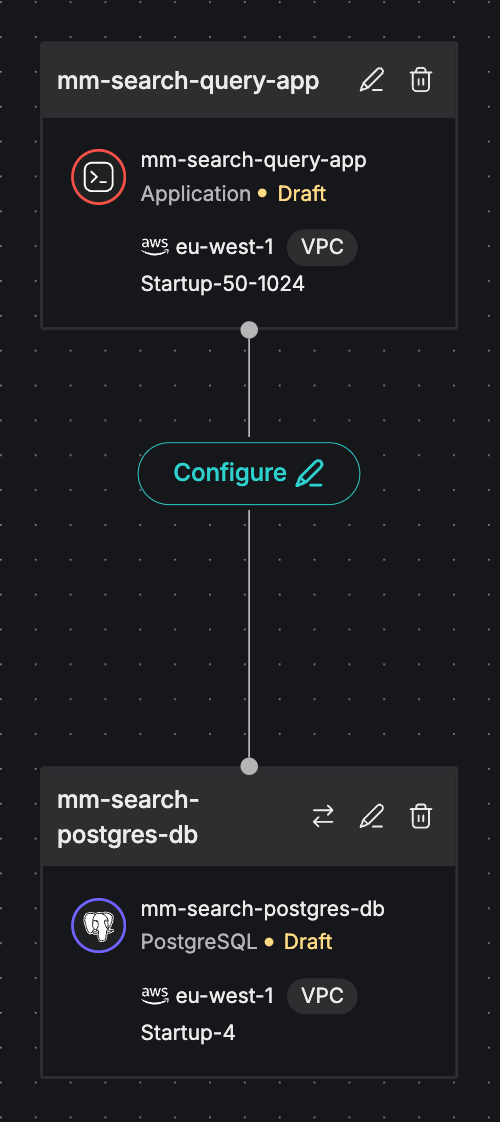
Once you’re satisfied with the configuration, click on Deploy and Aiven deploys your app within Aiven’s managed infrastructure.
Join the Limited Availability program
Aiven Apps simplifies how you deploy, connect, and run data-native applications, using the tools and workflows you already know. Aiven reads your Compose file, detects compatible services, and injects the right connection variables at deploy time, so there’s no manual wiring needed. Compatible services include Aiven for PostgreSQL®, Apache Kafka®, OpenSearch®, and Valkey™.
If you’re building modern applications and want the chance to give feedback that shapes what Aiven Apps becomes, request access to the Limited Availability program and start exploring Aiven Apps today.
