
'%3e%3cpath%20d='M4.02991%2017.5H0.297321V5.81641H4.02991V17.5ZM2.16161%204.22266C0.968304%204.22266%200%203.26172%200%202.10156C0%201.54297%200.229018%201.01172%200.634821%200.617188C1.04062%200.222656%201.59107%200%202.16161%200C2.73214%200%203.28259%200.222656%203.68839%200.617188C4.0942%201.01172%204.32321%201.54688%204.32321%202.10156C4.32321%203.26172%203.35491%204.22266%202.16161%204.22266ZM17.996%2017.5H14.2714V11.8125C14.2714%2010.457%2014.2433%208.71875%2012.3308%208.71875C10.3902%208.71875%2010.0929%2010.1914%2010.0929%2011.7148V17.5H6.36429V5.81641H9.9442V7.41016H9.99643C10.4946%206.49219%2011.7121%205.52344%2013.5281%205.52344C17.3049%205.52344%2018%207.94141%2018%2011.082V17.5H17.996Z'%20fill='white'%20/%3e%3c/g%3e%3cdefs%3e%3cclipPath%20id='clip0_1338_1747'%3e%3crect%20width='18'%20height='20'%20fill='white'%20/%3e%3c/clipPath%3e%3c/defs%3e%3c/svg%3e)

'%3e%3cpath%20d='M14.3517%201.875H17.1883L10.9928%208.75781L18.2812%2018.125H12.5758L8.10396%2012.4453L2.99325%2018.125H0.152623L6.77807%2010.7617L-0.208984%201.875H5.64102L9.67896%207.06641L14.3517%201.875ZM13.3553%2016.4766H14.9263L4.78521%203.4375H3.09771L13.3553%2016.4766Z'%20fill='white'%20/%3e%3c/g%3e%3cdefs%3e%3cclipPath%20id='clip0_1338_1751'%3e%3crect%20width='18'%20height='20'%20fill='white'%20/%3e%3c/clipPath%3e%3c/defs%3e%3c/svg%3e)


TL;DR
-
Aiven Apps runs stateless, production-ready applications directly inside your data perimeter, using Docker Compose and Containerfiles developers already know, so local and production environments stay in sync.
-
Deploying a Compose file lets Aiven Apps automatically detect compatible services, like
postgres:16-alpine, and offer to replace them with a matching Aiven service instead of a plain container. -
When Aiven Apps wires up a detected service, it injects the correct connection variables (such as
PGRST_DB_URI) automatically, removing manual copy-pasting of database URIs. -
The same Compose file that deploys to Aiven Apps still runs locally with plain
docker compose, so you can prototype an application independently before moving it onto Aiven. -
During the Limited Availability phase, Aiven Apps integrates with Aiven for PostgreSQL, Apache Kafka, OpenSearch, and Valkey, scanning multi-service Compose files and generating a diagram of how everything connects.
We recently announced the Limited Availability (LA) launch of Aiven Apps, which lets teams define, run, and scale production-ready, real-time applications using container and Compose-based workflows they already know. It provides a managed, stateless runtime that runs directly inside your data perimeter, letting you deploy applications alongside open-source data services like PostgreSQL® and Apache Kafka®.
In this post, I'll take a closer look at how Aiven Apps uses familiar tools like Docker Compose to keep your local and production environments in sync, without extra configuration work.
Developing for Aiven Apps
Part of my role developing demos and example applications involves moving between local development, shared environments, and live deployments. Keeping those environments consistent can quickly become difficult when application setup and infrastructure configuration drift apart. By using container images and Compose-based application definitions, Aiven Apps provides a portable way to package, deploy, and run applications using workflows that are already familiar to most developers.
My typical development process is:
-
Start local: Write the code and run it on my machine by hand. This is the basic “does it work” step.
I need to set the connection details for my Aiven services as environment variables, perhaps using a
.envfile. -
Add a Containerfile: Check it still works. This is the first stage of making it easier for someone else to deploy.
I’m still setting connection details as environment variables or in a
.envfile. -
Add a Compose file: Check that works. This step normally produces a setup that is independent of Aiven. It is especially important if I’m producing generic examples - they should be usable independent of any vendor.
In the Compose file I use a standard image for each of my database or streaming services, for instance
postgres:17-alpine.Since the database/streaming services are being created by the Compose file, I no longer need to specify their connection details as “external” environment variables.
-
Run in Aiven Apps: Now I use that same Compose file to run my application within Aiven, using Aiven services.
How it works
When you deploy an Aiven App, it looks for a Compose file and any Containerfiles, and asks which you want to use as your application “recipe”.
-
If you choose a Containerfile, then that will be used to create a single application service, and it’s up to you to specify the values for any environment variables that link to Aiven services.
-
If you choose a Compose file, then for each service in the Compose file
- If it uses
buildto specify a Containerfile, then that Containerfile will be used to create an application service. - If it uses
imageand is compatible with an Aiven service type (for example,image: postgresql:17for PostgreSQL), then it will be treated as an Aiven service.
- If it uses
Once the Compose and/or Containerfiles have been scanned, you are taken to the composer view where you can fine tune things:
- Choose the plan sizes, region and so on for each service
- Choose whether to create a new Aiven service (the default), or use an existing one
- Set any other environment variables for the user services
Once the Aiven services are running, the user services will be updated with the environment variables to use to connect to them
Deployment Examples
Aiven Apps can run applications defined by a single Containerfile, making it easy to get started quickly. However, using Compose files is where the platform's biggest advantage comes through: automatically wiring applications to Aiven services without additional infrastructure configuration.
A simple example: one user service, one database service
Let’s consider deploying PostgREST with a Containerfile. You might use something like:
Loading code...
If you deploy and choose that Containerfile, Aiven Apps will give you a “card” for the service, and you can edit it to set values for all of the named environment variables. That’s not bad, but it’s a bit inconvenient that you have to retrieve the URI for the PostgreSQL database and copy it into the PGRST_DB_URI environment variable.
The solution is to add a Compose file.
Because Compose files let you describe an entire App, including your own services and Aiven services, Aiven Apps will help connect them in an appropriate manner.
Let’s see how that works, by adding the following Compose file to the Containerfile we just looked at:
Loading code...
Now Aiven Apps scans both the Containerfile and the Compose file.
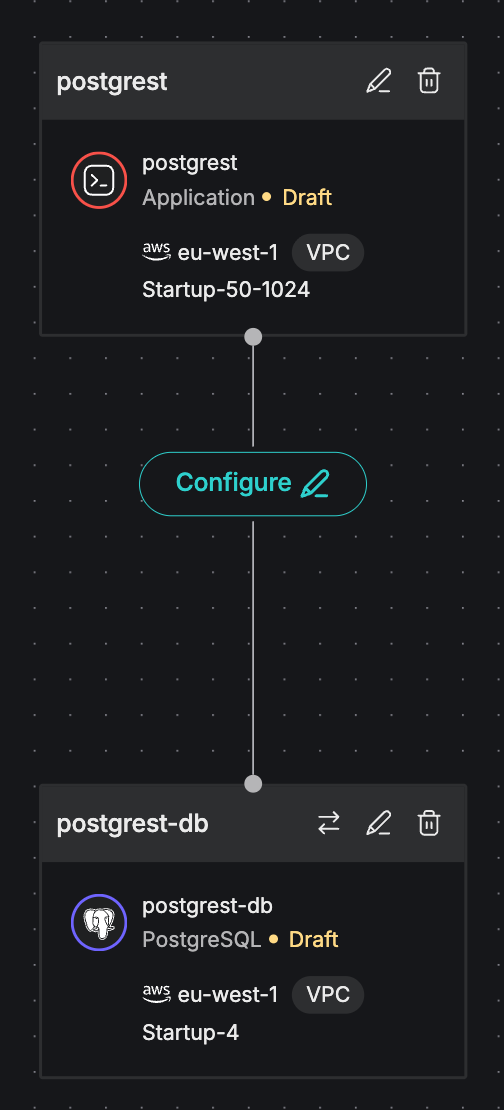
It will automatically detect that the image: postgres:16-alpine service is PostgreSQL, and can be replaced by an Aiven for PostgreSQL service - either by creating a new one for you, or using an existing one. Since this is pgREST you almost certainly want an existing database, as the database needs to be set up correctly to allow pgREST to work.
Aiven Apps will also set the PGRST_DB_URI environment value to the right value, so that when the pgREST service starts it knows how to connect to the database.
Here’s what that looks like in the configuration stage. The pen icon on a card lets you edit the service, to change the service type/size, region and other details.
Moreover, if you run that Compose file using (for instance) docker compose, it will also work locally, independently of Aiven, running up the Containerfile and a PG image. This means you can prototype your application on your own computer before moving it to Aiven Apps.
A more complex example: two user services, three database services
Here’s a more complex example. We’re just going to show the Compose file - let’s assume the Containerfiles are doing something sensible.
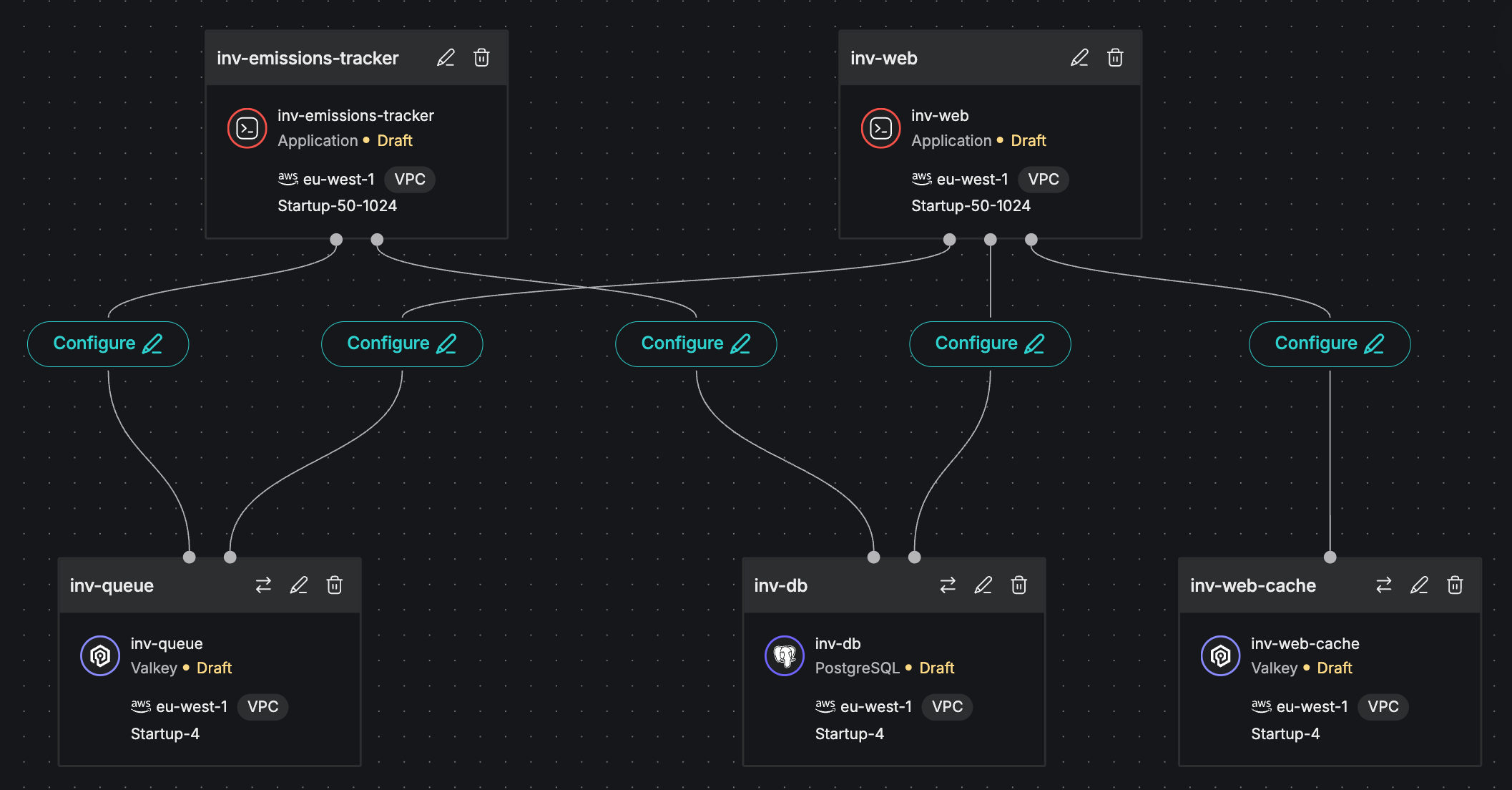
There are three services that will map to Aiven database services:
inv-dbas a PostgreSQL database,inv-queueas a Valkey job queue,- and
inv-web-cacheas a Valkey cache.
There are two independent user services:
inv-web, a web app that can update the database, which useinv-web-cacheas a cache and adds jobs toinv-queue,- and
inv-emissions-tracker, which reads jobs frominv-queueand updates theinv-dbdatabase.
Loading code...
When Aiven Apps scans that Compose file, it generates a diagram showing those relationships. The resulting configuration can be deployed as given, but you can edit the cards to set service resources, and can also change the PostgreSQL and Valkey service cards to use an existing service rather than creating new ones.
Join the Limited Availability program
Aiven Apps is designed to simplify how developers build, connect, and run data-native applications using the tools and workflows they already know. During the Limited Availability phase, Aiven Apps includes seamless integration with Aiven for PostgreSQL®, Apache Kafka®, OpenSearch®, and Valkey™, reading your Compose file to detect compatible services and injecting the right connection variables at deploy time, so there's no manual wiring needed.
If you’re building modern applications and want to help shape the future of data-native development on Aiven, request access to the Limited Availability program and start exploring Aiven Apps today.
Prefer to manage the PostgreSQL® and Apache Kafka® services behind your apps in plain language? Connect Claude, Cursor, or any MCP client with the Aiven MCP server.
