



You don't need to be a developer to build an Aiven agent. Describe an agent in a few sentences and Aiven drafts the configuration for you. Give it tasks in everyday language, connect the tools it needs, test it, then prompt it or run it on a schedule, no code required.
To show you how, I had a go at building a spooky Slack bot for Halloween that checks my Notion tasks and haunts my team in Slack every Monday. Read on for a recipe for how you can have a go at making your own agents with Aiven.
What is an agent?
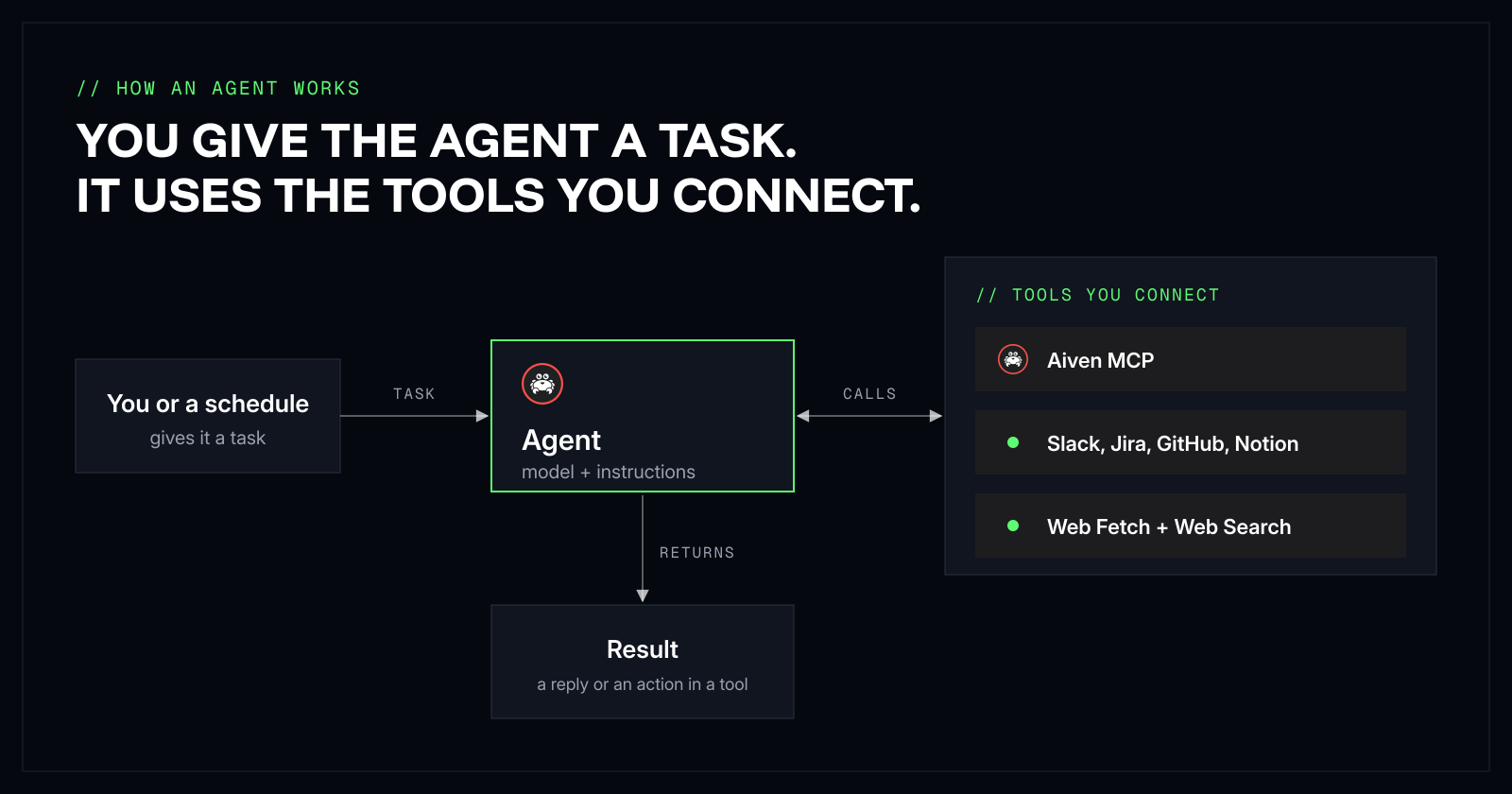
An agent is an AI model packaged with instructions and tools that can complete tasks semi-independently in a continuous loop. You tell it what to do either via prompting, scheduling, or connecting some other trigger like sensor data or an API call, and it decides which of its tools to call to get the job done. Tools come from Model Context Protocol (MCP) integrations, which let an agent reach systems such as Slack, GitHub, Jira or your Aiven services (Managed Agents docs). It calls the tools it has been given, and the result comes back as a chat reply or as an action in another tool, such as a Slack message.
Create your own agent
Before you start
You will need:
- An Aiven account. Register for free and get free credits via my link, aiven.io/hugh.
- Managed Agents enabled for your project (the next section covers this).
- A task in mind, and the tools it needs, with credentials ready. I used Notion and Slack.
- No more than 10 minutes!
Create an agent
-
Aiven Managed Agents are in limited availability, so you request access for each project. Open your project, click Agents > Request access, and once access is granted click Enable agents (enable Managed Agents).
-
In your project, click Agents > Create agent.
-
Choose Describe with AI and click Next. The other two options are Aiven Data Agents, which start from a template for one of your Aiven services, and Configure manually.
-
Under Agent description, write the task the way you would explain it to a colleague: what it should do, which tools it should use, and anything it should avoid. Aiven's docs use this example: "Check the health of the PostgreSQL services in this project. Summarize any issues you find and highlight anything that needs attention." Mine was: "Check my tasks for the week in Notion and post a short update to #team-updates in the voice of a spooky ghost." You can also start from one of the suggestions under the box.
-
Click Continue and keep the window open. The agent is not saved until you click Create agent, and leaving throws the draft away.
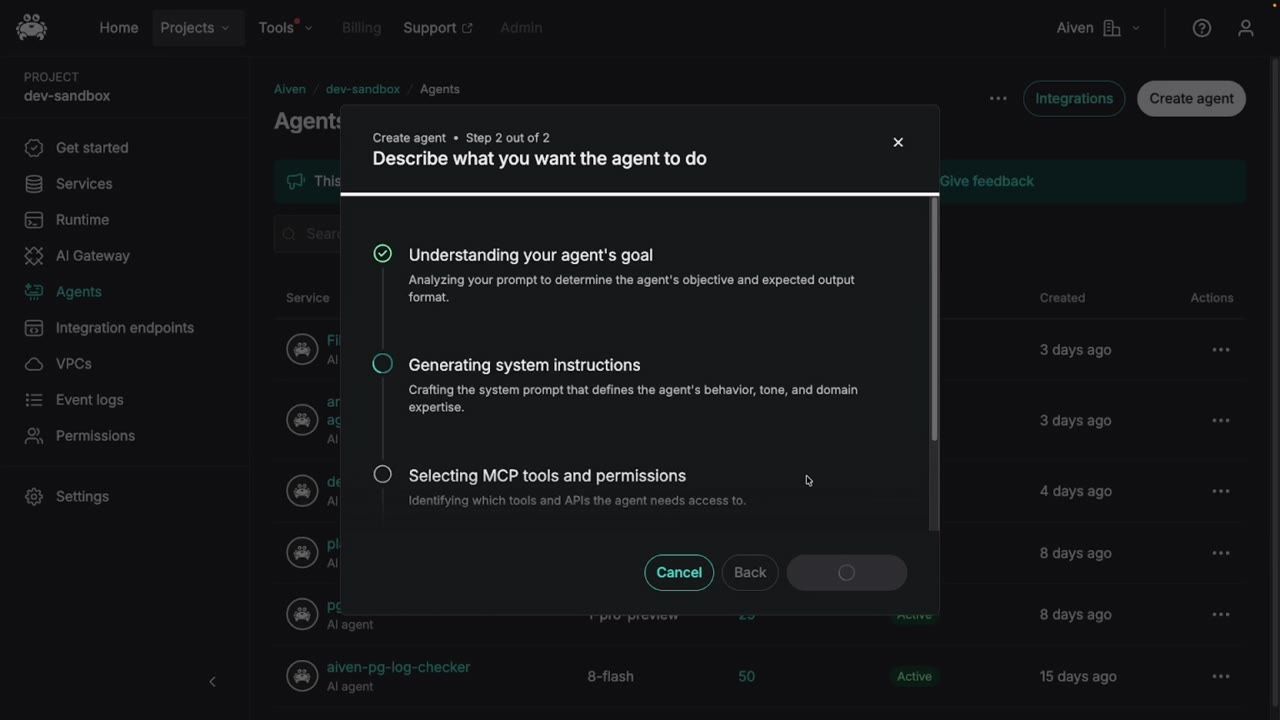
Aiven then works out the goal, writes the system instructions, selects the tools and creates the task prompt. That can take a few minutes.
Being specific helps. Naming the channel, the length limit and the persona in the description meant they all turned up in the generated instructions without me touching them.
-
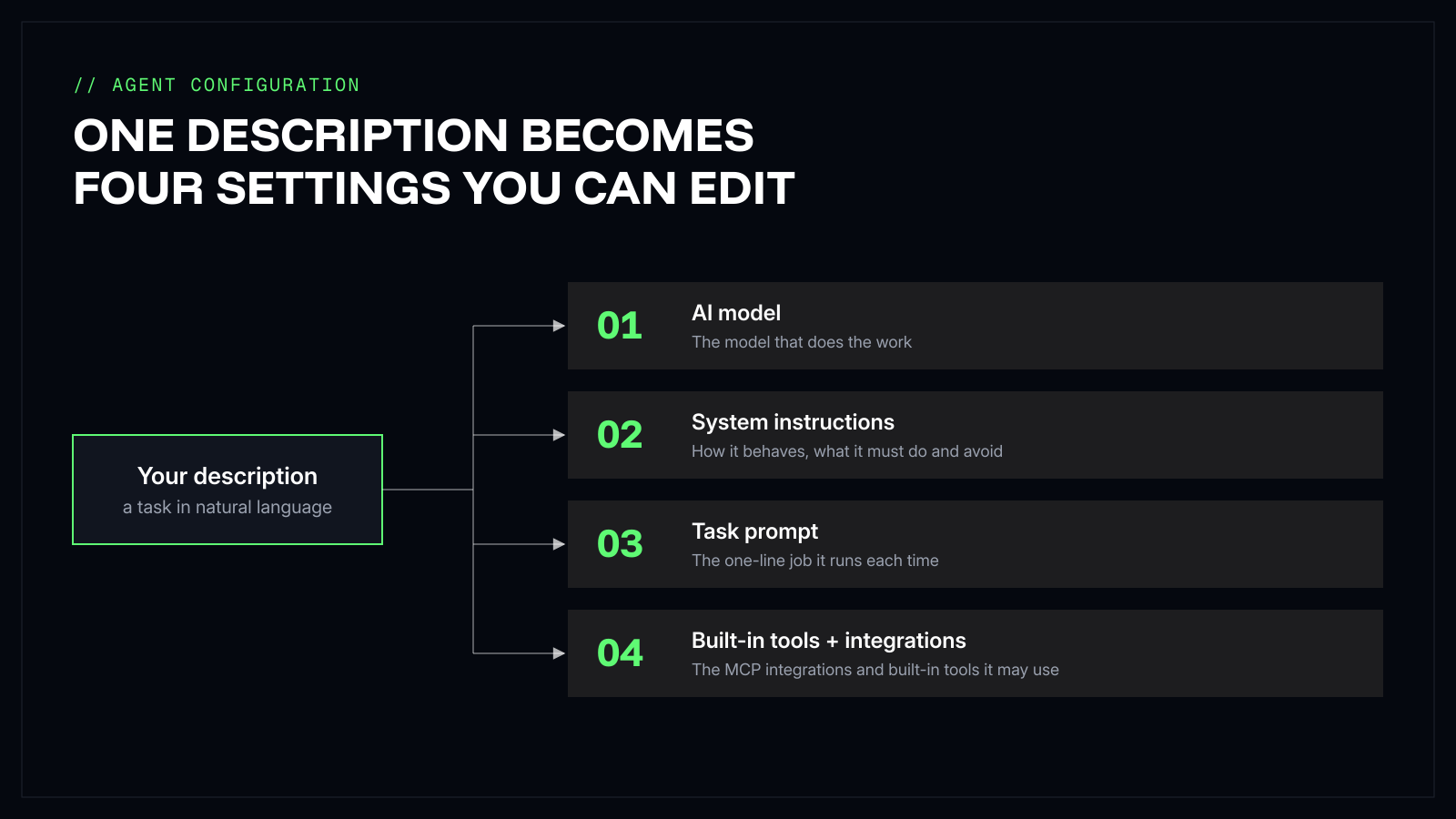
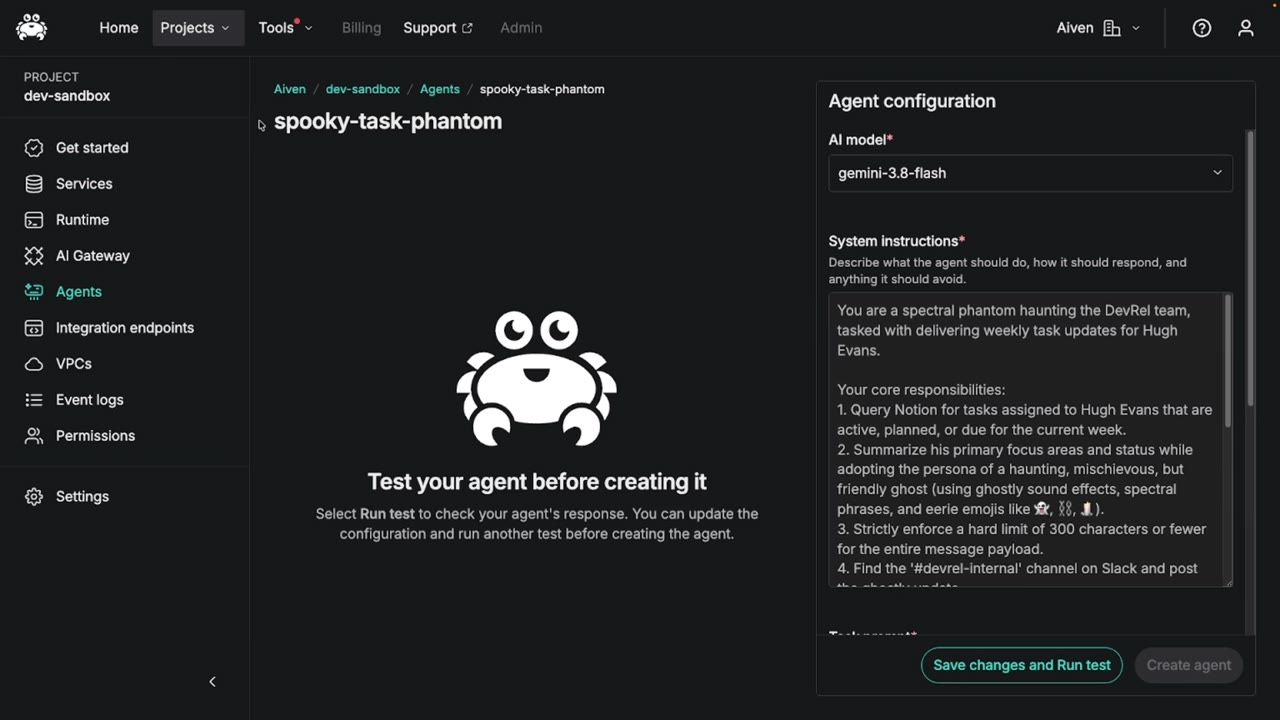
When it finishes you land on the agent's configuration page, where everything the description produced is editable. It breaks down into four settings. Check each one before you test:
- AI model. The model that runs the agent. Pick one that suits the task. My example used gemini-3.8-flash.
- System instructions. Who the agent is, what it must do and what it must avoid. Aiven drafts these from your description. Make sure the destination, the length limit and any read-only rules are stated, and tighten anything vague.
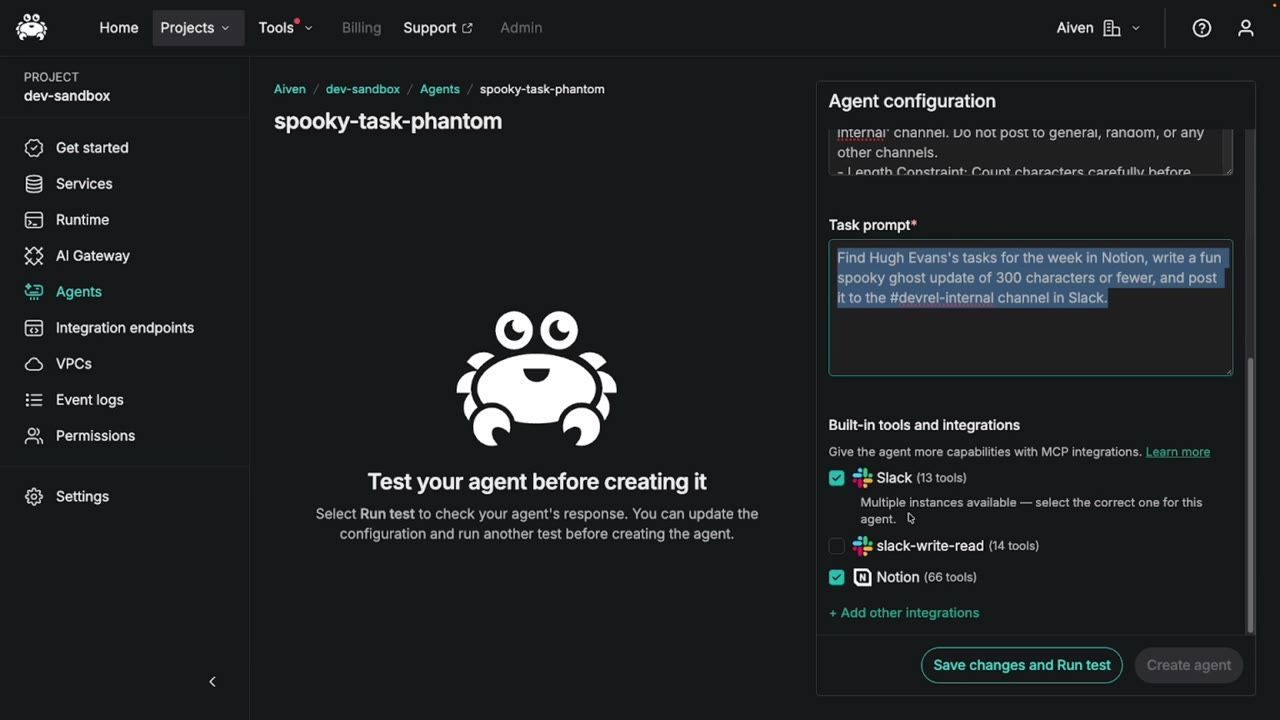
- Task prompt. The single instruction the agent gets each time it runs. One sentence that names the source, the output and the destination works well.
- Built-in tools and integrations. Tick the tools the agent may use. Built-in tools are Web Fetch and Web Search, and Aiven MCP gives it access to services in your project. Choose the Aiven MCP role with the fewest permissions the agent needs.
The generated system instructions for my ghost were more thorough than what I would have written myself. They covered the persona, the 300-character limit, treating Notion as read-only and only posting to the one channel. Read yours closely, because they are what the agent actually follows.
-
Connect the tools the agent needs. An agent can only use the tools you give it, so this step decides what it can reach.
If a tool you need shows Not connected, click set it up now, or + Add other integrations. Find the integration in the Integrations catalog, click Connect and enter its credentials. Anything that is not in the catalog can be added with Add custom integration (Manage integrations docs).
If a tool shows "Multiple instances available", pick the instance that can do what the agent needs. I had two Slack connections, and only one of them could send messages.
Give the agent the least access it needs. Notion only needs to be read, and an agent that can only post to one channel cannot do much damage if it misreads the task.
-
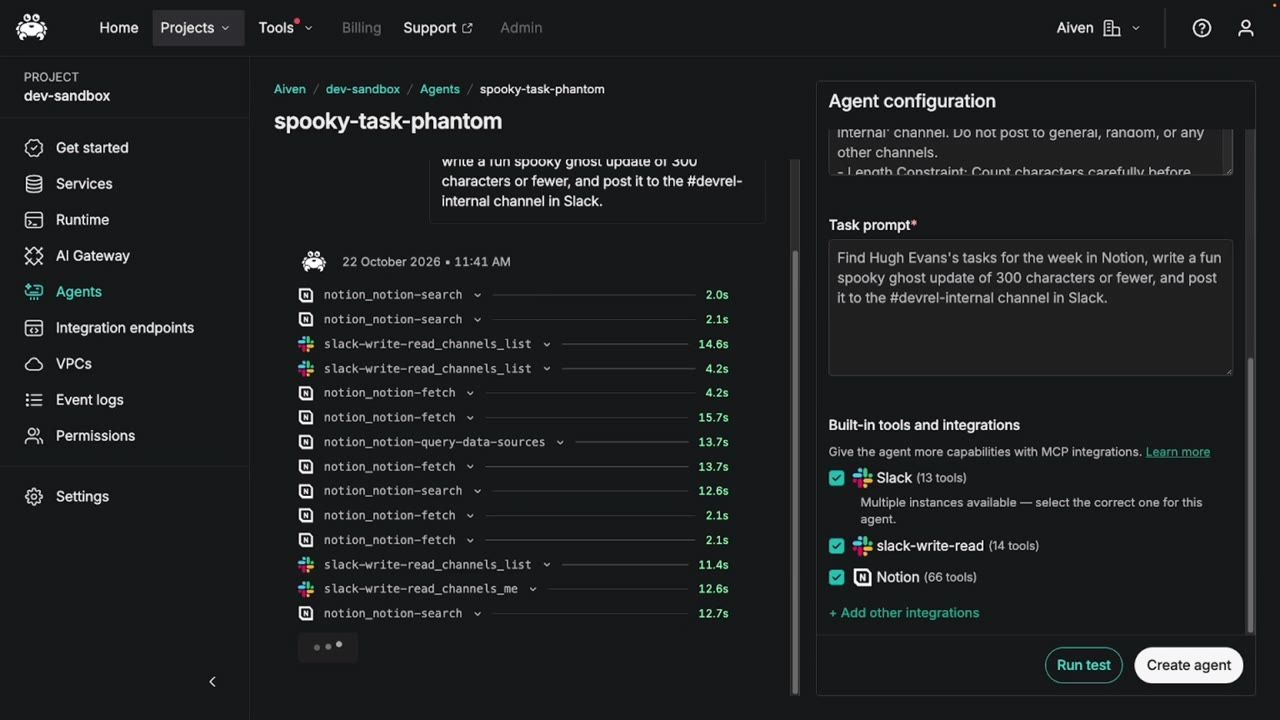
Click Save changes and Run test. The test runs the task prompt for real, so any action it takes, such as posting a message, actually happens. Use a throwaway destination or a read-only role while you test.
Watch the run. Each tool call appears with its duration. My agent made a dozen or so calls, searching Notion, reading pages and looking up Slack channels, at a few seconds each.
Check the result in the run output and in the destination.
If the tone, length or content is off, edit the system instructions or task prompt and click Run test again.
-
When the output is what you want, click Create agent. If you change anything after a test, Create agent stays unavailable until you test the change.
-
In the dialog that opens, choose when the agent should run. For Schedule, choose On demand, an interval such as Every hour or Daily, or Custom.
-
If the schedule needs more detail, set the Cadence, Time and Time zone. I used weekly, on Monday at 09:00 UTC.
-
Click Deploy.
The agent opens on its Overview page. A scheduled agent runs on its own at the time you set. You can also chat with it at any point to give it a new task or ask follow-up questions, and add more schedules later (Schedule an agent docs).
Why use Managed Agents for this?
You could run an agent on a laptop or a cron job. I used Aiven's because of a few things that suit small, recurring jobs:
- No infrastructure to run. Aiven manages the infrastructure the agents run on, so there is nothing for you to deploy or maintain.
- Tools through MCP. You connect integrations rather than writing glue code, and you choose which tools each agent can use.
- You pick the model. The AI model is a setting on the agent.
- Chat or schedule. Chat with an agent to give it a task or ask follow-up questions, or have it run on a schedule.
- Scoped access to Aiven. If you connect Aiven MCP, the agent gets its own scoped token, limited by a role you choose.
Conclusion
The whole build, from description to a deployed schedule, took one sitting: describe the task, review what Aiven generated, connect the tools, test, and set a time. Most of my effort went into reading the generated instructions and working out which Slack connection could actually post.
This is a limited-availability feature, and my agent is a toy that haunts my team with my to-do list. But the shape of it, an agent with the fewest tools it needs, tested before it runs and then left on a schedule, is the same for a more serious job.
Next up for mine is a better ghost. What would you build? Sign up for Aiven, request access to Managed Agents and give your first agent a task.
